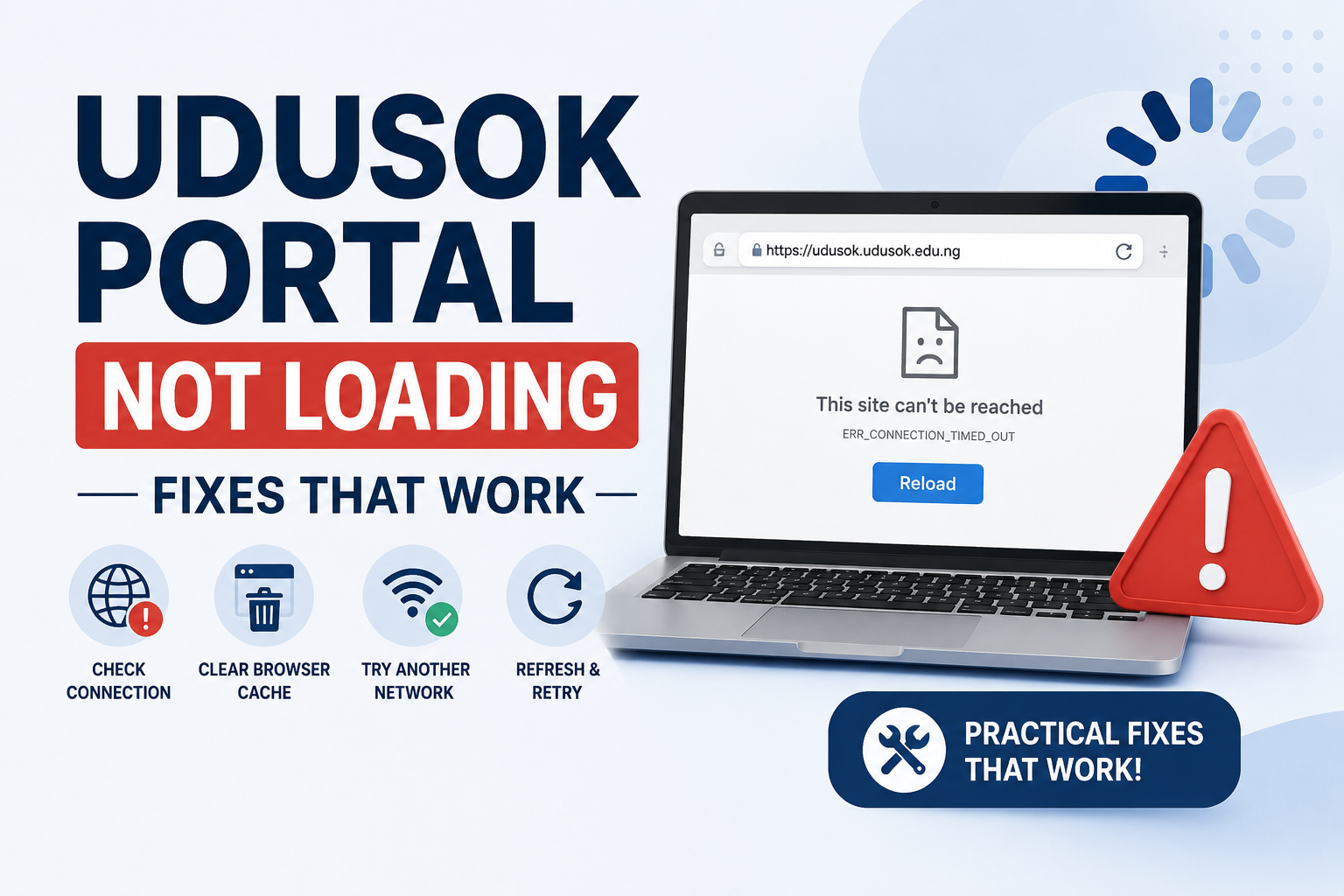
Nothing tests a UDUSOK student’s patience quite like sitting down to register courses or print an admission letter, only for the portal to return a blank screen, spin endlessly, or throw a login error. The problem is more common than most people realise, and the good news is that the majority of cases are fixable from your end without needing to visit any office on campus. This guide breaks down every known cause of UDUSOK portal loading failures and shows you exactly what to do to get back in.
Official UDUSOK Student Portal
Portal URL: https://udusportal.net
University: Usmanu Danfodiyo University, Sokoto (UDUSOK)
Vice Chancellor (2025/2026): Prof. Lawal Bilbis
ICT Directorate: Located on the main UDUSOK campus, Sokoto
Support Contact: Visit the ICT Directorate in person or email through the university’s official channels at udusok.edu.ng
✓ Portal Access is Free for All Registered UDUSOK Students
What the UDUSOK Student Portal Is and Why Loading Problems Happen
The UDUSOK student portal at udusportal.net is the central digital gateway through which students carry out almost every major academic transaction: course registration, school fees payment, result checking, hostel application, and admission letter printing. Because it handles this volume of traffic, it becomes particularly vulnerable to congestion and technical errors at specific times of the academic calendar, especially during the registration window when thousands of students try to access it simultaneously.
Portal loading problems at UDUSOK generally fall into two broad categories. The first category covers issues on the university’s server side: the portal is down for maintenance, the server is overloaded during peak usage, or a recent update caused a compatibility problem. The second category covers issues on the student’s side: a slow or unstable internet connection, an outdated browser, a corrupted cache, incorrect login credentials, or a device configuration that conflicts with how the portal renders its pages.
Understanding which category your problem falls under is the first step toward fixing it. If the portal is completely unreachable from multiple devices and different internet connections, the problem is almost certainly on the server side and you simply have to wait. But if others around you can access the portal while yours refuses to load, the issue is on your end and is almost always resolvable within a few minutes using the fixes in this guide.
⚠ Avoid These Common Mistakes – Do not keep refreshing a portal page that is failing to load, as this can worsen a congestion problem on an already-stressed server. Do not clear your browser data during an active session. And never enter your credentials on any website other than udusportal.net, regardless of what the site claims.
Current Portal Status (May 2026 Update)
As of May 2026, the UDUSOK student portal at udusportal.net is operational and accessible to registered students. The portal is currently handling traffic related to the 2025/2026 academic session registration activities, which means load times may be slower than usual during peak hours, particularly between 9am and 3pm on weekdays when the majority of students are attempting registration tasks simultaneously.
The ICT Directorate at UDUSOK periodically takes the portal offline for short maintenance windows, usually announced through the university’s official notice board and social media pages. If you visited the portal and received a message indicating scheduled maintenance, check back after a few hours. If you received no such message and the portal simply will not load, the fixes in this guide are your starting point.
🕑 Best Time to Use the UDUSOK Portal – Based on consistent student feedback, the UDUSOK portal tends to be fastest and most responsive in the early morning hours between 6am and 8am, and again late at night after 10pm. If you have a critical task like course registration or fee payment, schedule it during these quieter windows to avoid the midday rush.
Common Causes of UDUSOK Portal Loading Failures
Internet Connection Problems
A weak, intermittent, or throttled data connection is the most frequent reason students cannot load the UDUSOK portal. The portal involves multiple server requests when loading and requires a reasonably stable connection to complete them. Mobile data connections in Sokoto, particularly on some networks, can be inconsistent, and switching networks or moving to a stronger signal area resolves the problem in many cases.
Browser Cache and Cookie Conflicts
Your browser stores temporary data from websites you have visited before, including the UDUSOK portal. Over time, this stored data can become outdated or corrupted, causing the portal to either fail to load properly or display old, cached pages instead of the current version. Clearing your browser cache and cookies is one of the most reliable fixes available and takes less than two minutes to do.
Outdated Browser Version
The UDUSOK portal is built on web technologies that require a reasonably modern browser to render correctly. If you are using an older version of Chrome, Firefox, or any other browser, certain portal elements may not load or may break the page entirely. Browsers that have not been updated in several months can also have security certificate handling issues that cause them to block portal access entirely.
VPN and Proxy Interference
Some students use VPN applications to manage their data usage or access certain content. VPNs can interfere with how the UDUSOK portal authenticates your session and may cause login failures, redirect errors, or complete loading blocks. Turning off your VPN before accessing the portal resolves this issue immediately in the majority of cases.
Server Overload During Peak Registration
When thousands of UDUSOK students attempt to access the portal at the same time, the server can slow to a crawl or temporarily stop responding altogether. This is not a problem on your device or connection. The only solution in this scenario is to wait and try again during an off-peak period.
Wrong Portal URL
Search engine results sometimes surface old or unofficial UDUSOK-related websites ahead of the real portal. Students who click on these links and try to log in may see pages that look similar to the real portal but either fail to load properly or, worse, are phishing pages designed to capture your credentials. Always type the portal address directly into your browser: udusportal.net.
Quick Reference: Error Types and What They Mean
| Error or Symptom | Most Likely Cause | First Fix to Try |
|---|---|---|
| Blank white page when portal loads | Browser cache conflict or JavaScript loading failure | Clear browser cache, reload with Ctrl + Shift + R |
| Page keeps spinning and never loads | Slow internet connection or server overload | Switch network, try at off-peak hours |
| “Connection timed out” error | Server temporarily down or unreachable | Wait 30 minutes and try again |
| “Invalid credentials” on login | Wrong username or password entered | Re-enter JAMB number and DOB password carefully |
| “Your connection is not private” warning | Browser SSL/security certificate issue | Update browser or try a different browser |
| Portal loads but dashboard is empty | Incomplete registration or session cookie error | Log out completely, clear cookies, log back in |
| Portal accessible on one device but not another | Device-specific browser or cache problem | Try the portal on the working device or fix cache on the broken one |
How to Fix UDUSOK Portal Not Loading: Step by Step
Work through these fixes in order. Most students resolve their portal access issue before reaching step five.
Check Your Internet Connection First
Open any other website, such as google.com or youtube.com, to confirm your internet is working. If those sites also fail to load, your connection is the problem and not the portal. Toggle your mobile data off and back on, switch from WiFi to mobile data or vice versa, or move to an area with a stronger signal. Once your internet is confirmed stable, try the portal again before proceeding to any other fix.
Clear Your Browser Cache and Cookies
On Chrome, press Ctrl + Shift + Delete (Windows) or Cmd + Shift + Delete (Mac) to open the clear browsing data menu. Select “Cached images and files” and “Cookies and other site data,” set the time range to “All time,” and click “Clear data.” On a phone, go to your browser settings, find Privacy or History, and clear cache and cookies. After clearing, close the browser completely, reopen it, and navigate to udusportal.net again.
Try a Different Browser
If you normally use Chrome, switch to Firefox or Microsoft Edge and try loading the portal from there. If you are on a phone and using the default Samsung Internet or Opera Mini browser, switch to Chrome or Firefox. Different browsers handle web sessions and SSL certificates differently, and what fails on one browser often works fine on another without any additional changes.
Disable Any VPN or Proxy Application
If you have a VPN application installed on your phone or laptop, open it and disconnect from the VPN server before trying the portal. Applications like Psiphon, Turbo VPN, Hotspot Shield, and similar tools can interfere with how the portal handles your login session. After disabling the VPN, restart your browser and go directly to udusportal.net.
Update Your Browser to the Latest Version
On Chrome, click the three dots at the top right corner, go to Help, then About Google Chrome. Chrome will automatically check for updates and install them if available. On Firefox, go to Help and then About Firefox. After updating, restart the browser and try the portal again. An updated browser also resolves the “Your connection is not private” error that some students encounter.
Try Opening the Portal in Incognito or Private Mode
Incognito mode opens a fresh browser session with no cached data, cookies, or saved sessions from previous visits. Press Ctrl + Shift + N on Chrome (or Ctrl + Shift + P on Firefox) to open a private window, then type udusportal.net and attempt to log in. If the portal loads correctly in incognito but not in your normal browser window, the problem is definitely a cache or extension conflict in your regular browser.
Disable Browser Extensions Temporarily
Ad blockers, script blockers, and privacy extensions can sometimes prevent portal elements from loading correctly. On Chrome, go to the Extensions menu (three dots, then Extensions, then Manage Extensions) and toggle off all extensions. Reload the portal. If it works, enable your extensions one by one to identify which one was causing the conflict, then leave that one disabled when using the portal.
Restart Your Device and Router
A full device restart clears temporary memory and refreshes your network connection. If you are connected to a WiFi router, unplug the router from power, wait 30 seconds, and plug it back in. Give it two minutes to fully reconnect before trying the portal again. This step resolves network-level DNS caching issues that sometimes prevent specific websites from loading even when your general internet connection appears fine.
Contact the UDUSOK ICT Directorate
If none of the above fixes work and you have confirmed the portal is accessible to other students, the problem may be specific to your account. Visit the ICT Directorate on the UDUSOK main campus with your student ID and explain the exact error you are seeing. Bring a screenshot of the error message if possible. They can investigate account-level issues such as a locked profile, expired session tokens, or incorrect registration records that are blocking your access from the backend.
✅ Quick Summary: Fixes That Resolve 90% of Cases – Clear your browser cache and cookies, disable your VPN, switch to a different browser, and try during off-peak hours. These four actions resolve the vast majority of UDUSOK portal loading problems students encounter without requiring any office visit.
What to Do While the Portal Is Down
Frequently Asked Questions About UDUSOK Portal Not Loading
Why is the UDUSOK portal not loading today?
The most common reasons the UDUSOK portal fails to load include server overload during peak registration periods, a slow or unstable internet connection on your device, an outdated browser, cached data conflicts, or a VPN application interfering with your session. Start by checking your internet connection and clearing your browser cache, then try again before assuming the portal itself is down.
What is the correct URL for the UDUSOK student portal?
The official and correct URL for the UDUSOK student portal is https://udusportal.net. Always type this address directly into your browser rather than searching for it through Google, as search results can sometimes display outdated or unofficial links that either fail to load or are deceptive pages.
My UDUSOK portal login keeps saying invalid credentials. What do I do?
Your username is your JAMB registration number, and your default password is your date of birth in DDMMYYYY format (for example, 14052004 for someone born on 14th May 2004). Double-check that you are not accidentally including spaces or typing your registration number incorrectly. If you have previously changed your password and forgotten it, visit the ICT Directorate on campus with your student ID to request a password reset.
The UDUSOK portal loads on my friend’s phone but not on mine. Why?
This points to a device-specific issue rather than a server problem. The most likely causes are a corrupted browser cache on your device, an active VPN application, or an outdated browser version. Clear your cache and cookies, disable any VPN, update your browser, and try again. If the problem persists, try using a different browser application entirely on your phone.
Is there a way to know when the UDUSOK portal is back online after maintenance?
UDUSOK does not operate a dedicated status page for the portal. The most reliable way to track maintenance announcements is to follow the university’s official social media accounts and check the physical notice board at the university. You can also try accessing the portal periodically during a suspected downtime window, as maintenance periods rarely exceed 4 to 6 hours.
Can I use my phone to access the UDUSOK portal or do I need a computer?
You can access the UDUSOK student portal from a smartphone. The portal is mobile-accessible through any standard mobile browser such as Chrome or Firefox. However, some portal functions, particularly those that generate printable PDFs such as the admission letter or allocation letter, work more reliably on a laptop or desktop computer connected to a printer. For simple tasks like checking your result or viewing your dashboard, a smartphone works fine.
What should I do if the portal is down and my registration deadline is close?
Document the issue immediately. Take a screenshot showing the error, note the date and time, and visit the office of your faculty’s academic adviser or the academic affairs unit on campus. Inform them in writing that the portal is inaccessible and request that your situation be noted. The university has historically made allowances for students who can demonstrate a genuine portal outage prevented them from completing registration, but you must proactively report the issue rather than waiting for the deadline to pass.
Final Word
Portal problems at UDUSOK are frustrating, especially when you are under pressure to complete registration or meet a payment deadline. The reality is that most of these issues are fixable within minutes once you know what to look at. Clearing your browser cache, switching networks, disabling your VPN, and trying at off-peak hours will resolve the problem for the vast majority of students without requiring any office visit or technical expertise.
The cases that genuinely require ICT Directorate intervention are relatively rare and are usually tied to account-level issues like a locked profile or a mismatched registration record. If you have worked through every fix in this guide and the portal still refuses to cooperate specifically on your account while accessible to others, that is when you pick up your student ID and make the trip to the ICT office in person. Bring a clear description of the error and any screenshots you have taken.
UdusResultChecker.com will continue to update this guide as the UDUSOK portal undergoes changes or new error patterns emerge during the 2025/2026 session and beyond. Bookmark this page for reference and share it with any UDUSOK student who is stuck on the same problem. A well-informed student community saves everyone time and reduces unnecessary panic when the portal acts up during registration season.