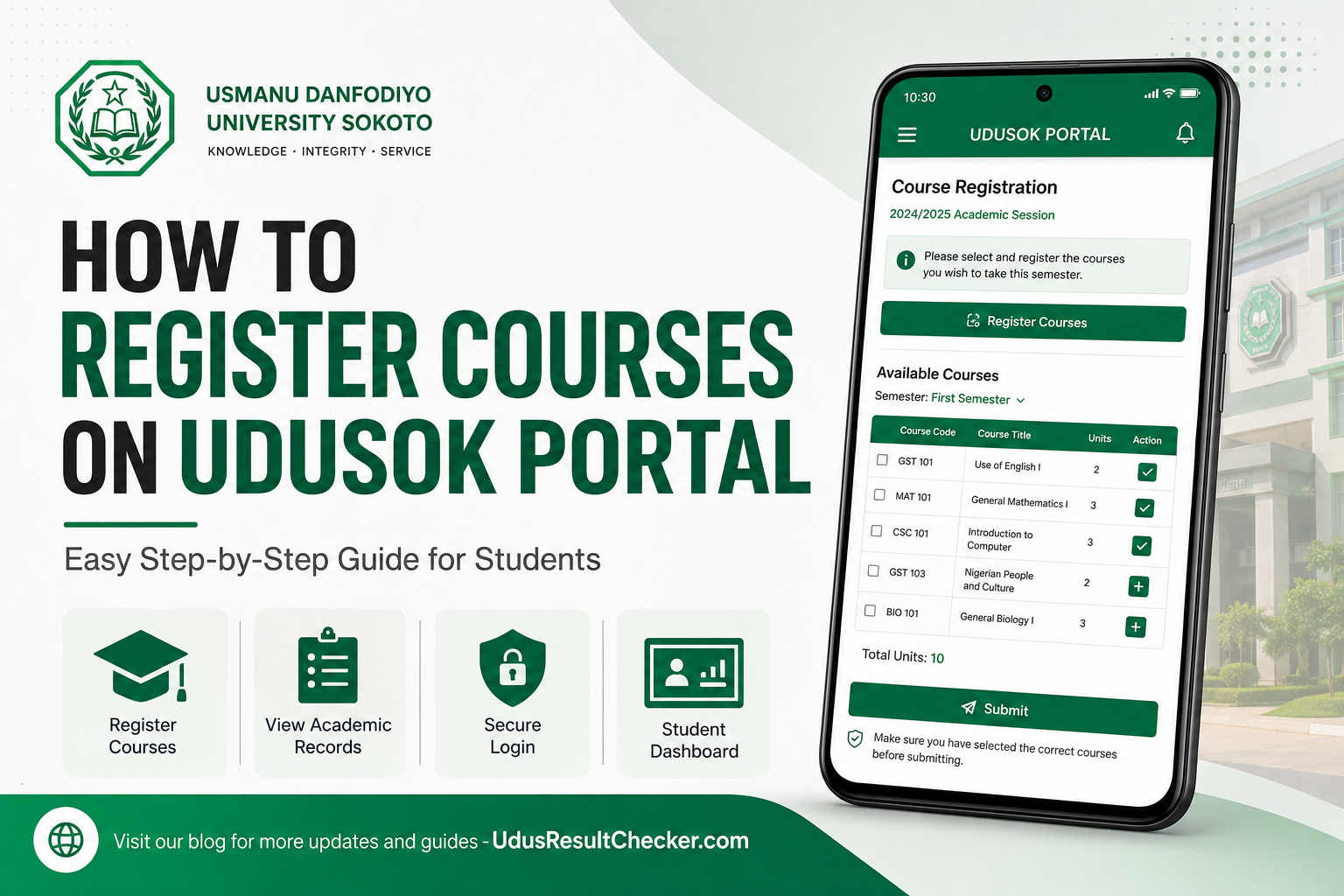
Course registration on the Usmanu Danfodiyo University Sokoto (UDUSOK) student portal is one of the most important academic exercises every student must complete at the beginning of each semester. Without completing this process, your attendance will not be captured, your results will not be processed, and you risk serious academic complications down the line. This guide walks you through every step of course registration on the UDUSOK portal, from logging in to printing your duly completed course form.
Official UDUSOK Student Portal
Portal URL: https://portal.udusok.edu.ng
University: Usmanu Danfodiyo University, Sokoto (UDUSOK)
Vice Chancellor (as of 2025): Prof. Lawal Bilbis
Portal Support Email: ict@udusok.edu.ng
✓ Course Registration Is Free of Charge on the Portal
What Is UDUSOK Course Registration and Why Does It Matter?
Course registration is the official process through which a student formally enrols in the courses they intend to study during a given semester. At Usmanu Danfodiyo University, Sokoto, this process is done entirely online through the university’s student portal. Once a student completes registration, the courses are attached to their academic record, and lecturers can track attendance and submit results for those courses.
Skipping or delaying course registration has real consequences. Your name will not appear on attendance sheets in lecture halls. Your results for that semester cannot be uploaded and processed. In some departments, late registration attracts a penalty fee or requires departmental approval before the system will accept your courses. This is not something to treat casually.
UDUSOK uses a centralised web-based portal to manage all student academic activities, including course registration, result checking, school fees payment tracking, and hostel allocation. The same portal you use to check your results is the one you use for course registration.
💡 Tip: Always confirm with your departmental officer or level adviser the minimum and maximum number of credit units you are permitted to register per semester. Each faculty has its own limits.
Current Status of UDUSOK Course Registration (2025/2026 Academic Session)
As of May 2026, the 2025/2026 second semester course registration window is either active or approaching its deadline, depending on your faculty’s specific academic calendar. UDUSOK typically opens course registration at the beginning of each semester, roughly two to four weeks after the resumption date. The university does not always announce portal opening dates via press releases, so checking directly on the portal or monitoring your department notice board is the most reliable approach.
First-semester registration for new students (100-level) usually runs from October through November, while returning students begin registration in September once the new academic calendar is released. For the second semester, registration typically opens in February and runs through March, though delays in the academic calendar have shifted these windows in recent sessions.
⚠️ Important: Do not wait until the last week of the registration window. The portal sometimes experiences high traffic near deadlines, and technical difficulties at that point will be your problem, not the university’s. Departmental submission of printed course forms also has its own deadline, which is usually earlier than the portal closing date.
Requirements Before You Can Register Courses on UDUSOK Portal
School Fees Payment
This is the most critical prerequisite. You cannot access the course registration module on the UDUSOK portal until your school fees for that session have been fully paid and your payment has been verified by the bursary. Once payment is confirmed on the portal, the course registration tab will become active on your dashboard. Students with outstanding fee balances from a previous session may also face restrictions.
Valid Student Login Credentials
You need your matriculation number and your portal password. New students receive default login credentials during the clearance process, which they are expected to change immediately upon first login. If you have forgotten your password, use the password reset option on the portal login page or visit the ICT unit with your student ID.
Current Academic Status
Students who are on academic probation or have a carry-over situation may face restrictions on the number of units they can register. Your departmental adviser must approve your course load before you proceed if you fall into this category.
List of Courses Approved for Your Level
Before you go to the portal, have a copy of your departmental approved course list for that level and semester. This is usually published on your department’s notice board or distributed by your class representative. It contains the course codes and credit units you are permitted to register. Do not rely on memory when selecting courses on the portal.
Documents to Prepare Before You Begin
| Document | Notes |
|---|---|
| School Fees Receipt / Payment Confirmation | Generated after Remita payment; confirm it has been verified on the portal before proceeding |
| Matriculation Number | Your unique student ID number issued during admission; used as your portal login username |
| Portal Login Password | Personal password set during first login; visit the ICT unit if you need a reset |
| Approved Departmental Course List | Lists all courses with their codes and credit units for your level and semester |
| Adviser’s Approval (if applicable) | Required for students on probation or those with carry-over courses exceeding the allowed credit load |
| A Working Device with Internet Access | The portal works on both desktop and mobile browsers; Chrome and Firefox give the best results |
| Printer Access | You will need to print your completed course registration form for submission to your department |
How to Register Courses on UDUSOK Portal: Step-by-Step Process
You Are Done! Once your form has been submitted and acknowledged by your department, your course registration for that semester is complete. You can now verify your registered courses anytime by logging into the portal.
What Happens After You Register Your Courses
📋 Stage 1: Departmental Processing
Your department records the submitted form and your name is added to the official list of registered students for that level. Lecturers then receive course lists from the department showing all students registered for each course.
👥 Stage 2: Attendance Tracking Begins
Once your registration is confirmed, your name appears on the attendance register for each of your registered courses. At UDUSOK, a minimum attendance threshold is required to sit for semester examinations, so showing up to class matters from day one.
📄 Stage 3: Continuous Assessment (CA) Scores
Lecturers begin recording CA scores, which typically make up 30% of the final grade for each course. Only students whose names appear on the official course list will have their CA scores processed. This is another reason why course registration cannot be skipped.
📝 Stage 4: Examination Registration
Before semester examinations, students are sometimes required to verify their examination details on the portal. Your registered courses feed directly into your examination timetable and slip. Students without confirmed course registration cannot be issued examination clearance.
🎓 Stage 5: Result Processing
At the end of the semester, lecturers upload scores for registered students only. Your result for each course will appear on the portal after the examination board meeting. You can then check your UDUSOK result directly on the portal using your matriculation number.
Frequently Asked Questions About UDUSOK Course Registration
Q: What is the UDUSOK student portal URL for course registration?
Q: Can I register courses without paying school fees first?
Q: What should I do if a course is not showing up on the UDUSOK portal?
Q: How many credit units can I register per semester on UDUSOK portal?
Q: Can I edit or change my course registration after submitting on the portal?
Q: I forgot my UDUSOK portal password. How do I reset it?
Q: Is course registration on the UDUSOK portal free?
Final Word
Course registration on the UDUSOK portal is not just a bureaucratic step. It is the foundation of your academic record for that semester. Every result you receive, every credit unit you accumulate toward your degree, and every examination you sit for traces back to what you registered on that portal. Treat it with the seriousness it deserves and do not leave it until the last moment.
If you run into technical problems, the ICT Directorate at UDUSOK is the right place to go for resolution. Your departmental office and level adviser are also valuable contacts when issues arise with course approvals or portal access. The earlier you register, the more time you have to resolve any problems that come up before deadlines pass.
Bookmark UdusResultChecker.com for more practical guides on the UDUSOK portal, including how to check your semester results, how to handle your school fees payment, and how to navigate every feature the UDUSOK student portal offers. You deserve to get the most out of your university’s digital systems.
Disclaimer: UdusResultChecker.com is an independent student information website and is not officially affiliated with Usmanu Danfodiyo University, Sokoto (UDUSOK) or its management. All information on this page is provided for educational and guidance purposes only. Portal features, deadlines, and procedures are subject to change by the university at any time. Always verify current information with your department or the UDUSOK ICT Directorate. We do not process, store, or have access to any student portal data.